Meta Quest 3 is an affordable way to get started in modern virtual reality (VR). It’s a standalone VR headset that doesn’t require you to worry about a powerful PC or messing with cables.
It can deliver immersive VR experiences across a wide range of genres, including gaming. It offers 3D sound, better graphics, and faster loading times than before. If this is your first time using a VR headset or Meta VR device, we’re here to help you get started with the setup process.
This tutorial explains how you can set up your Meta Quest 3 and immerse yourself in the world of virtual reality.
Meta Quest 3 Unboxing
The first step is to unbox the Meta Quest 3 to make sure you’ve received everything in the box. It should include a VR headset, Meta Quest Touch Plus controllers, a power adapter, a charging cable, and documentation. Two AA batteries should also be included with the controllers.
Source: Meta
How to Find the Right Meta Quest 3 for You
Put on the Meta Quest 3 VR headset by placing it over your eyes and head. Use the top and back straps to find the right fit for you. Adjust the straps until it feels comfortable and the headset doesn’t move around. It may take some time and a few tries, but it will be worth it in the end.
Meta Quest 3 Setup
Source: Meta
- Download the Meta Quest companion app on your Android or iOS device.
- Log in with your Facebook or Instagram account. You can also create a new Meta account if needed.
- Once you have successfully logged in, the app will prompt you to pair a new device.
- Turn on your Meta Quest 3 VR headset by holding down the power button on the left side for about three seconds. You should hear a chime sound and see the Meta logo appear on the headset.
- Remove the plastic tabs from the controllers and turn them on. They should automatically pair with the headphones.
- The headset will show you on-screen instructions to continue with the setup process. It includes several steps, such as selecting your preferred language and connecting to Wi-Fi.
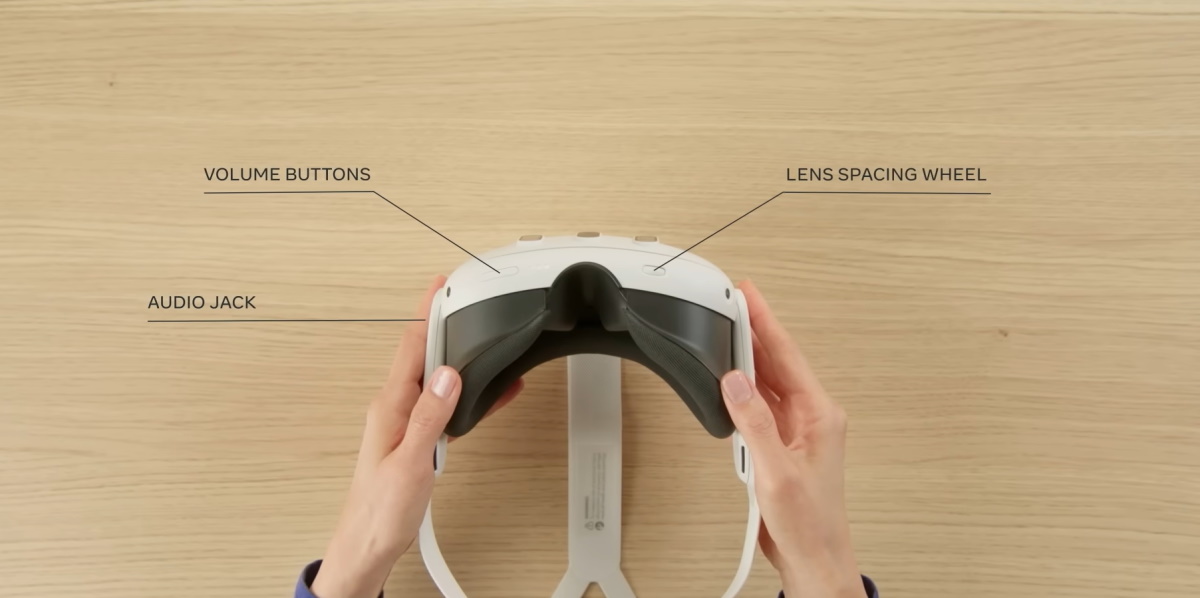
- The headset has a lens adjustment wheel on the bottom left. You can use it to adjust the distance of the lenses. It helps ensure that VR images are clear and comfortable to view.
- Then, you can go to the Meta Quest app on your Android/iOS device to complete the device pairing step. Choose Connect new device > Meta Quest 3 and follow the steps on screen.
- If there are any pending updates, be sure to download and install them.
Creating a Safe Space Boundary in Meta Quest 3
Meta Quest 3 includes a safe space boundary feature to help you avoid injury while immersed in the VR world. The headset will prompt you to create a virtual boundary during initial setup.
All you have to do is go to the area you want to use Meta Quest 3 in. Look around the area with your headset on and a safe space boundary will automatically be created. There will be an option to create the boundary manually if you are not happy with the automatic creation.